
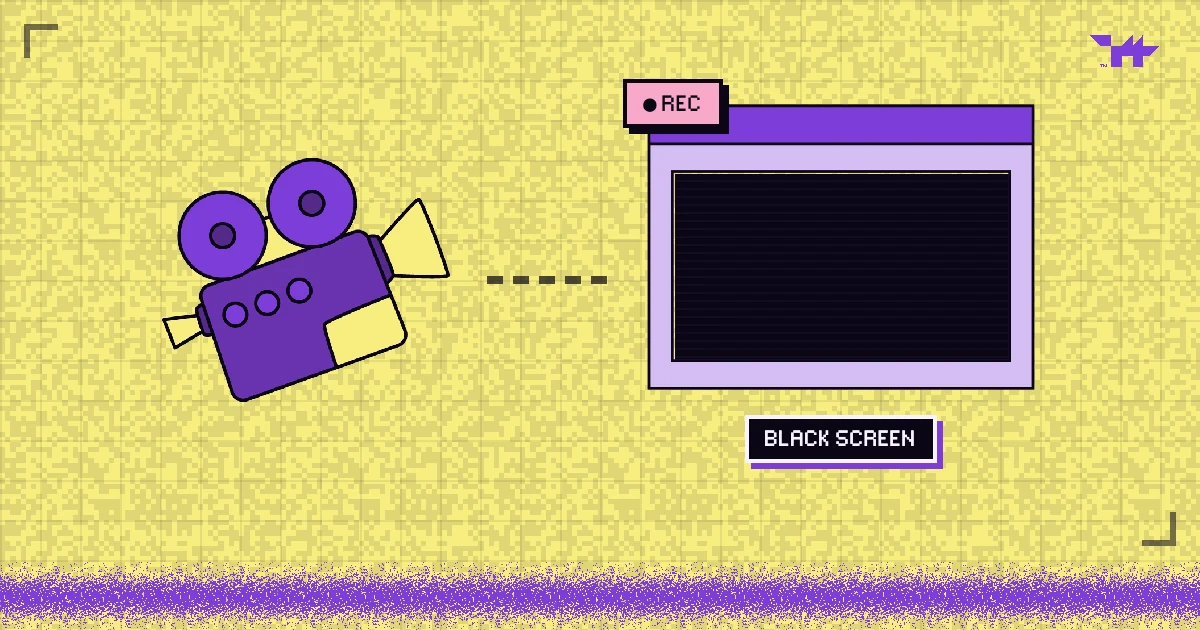
- On hardware-protected playback (Safari on Apple devices, Android phones with Widevine L1, Windows with hardware PlayReady), screen recordings of DRM video usually come out black.
- Where only software DRM is available, a screen recorder can capture the picture, so those viewers should get lower quality or be sent to a protected app.
- Nothing stops a phone camera pointed at the screen. A visible per-viewer watermark turns that copy into evidence of who leaked it.
LEVEL MAP
It is the first question every course creator asks, and the honest answer is: sometimes. On many devices, protected video already records as a black rectangle. On others it does not, and no web page can change that. Here is what decides it, and what to do about the cases that slip through.
What a screen recorder actually captures
A screen recorder copies whatever the operating system draws on the screen. Protected video can take a different route: on a hardware-backed device, it is decrypted and decoded inside a sealed part of the chip and placed on the display in a way the operating system refuses to hand to recording apps. The recorder sees a black rectangle where the video should be, while the viewer sees the picture normally.
When DRM runs in software, the decoded frames are ordinary pixels in ordinary memory, and the recorder captures them like anything else on screen.
Device by device
| Device | Protection path | Screen recording of DRM video | What Wolvy does |
|---|---|---|---|
| iPhone, iPad (Safari) | FairPlay, hardware | Black | Full quality |
| Mac (Safari) | FairPlay, hardware | Black | Full quality |
| Android phone with Widevine L1 | Hardware | Black | HD |
| Windows, Edge or Chrome with hardware PlayReady | Hardware (SL3000) | Black | HD; 4K with HDCP 2.2 |
| Chrome, Firefox or Edge on Mac and Linux | Software (Widevine L3) | Captured | Up to 480p and watermarked; App-Only mode can send Mac viewers to Safari |
| Rooted or L3 Android devices | Software | Captured | Up to 480p; App-Only mode sends them to the Wolvy Player app |
| Wolvy Player app (Android) | DRM and FLAG_SECURE | Black, screenshots included | Where App-Only mode sends Android viewers |
| HDMI capture devices | HDCP on the cable | No HD or 4K | HD and 4K only play over an HDCP-protected connection |
Results can vary with operating-system versions and hardware; the table shows the usual behaviour.
App-Only mode: when the browser is not enough
For content that must not be recorded, such as exam reviews, premium lessons or screeners, Wolvy’s App-Only mode refuses to play where the browser only has software Widevine and points the viewer to a protected client instead:
- Android: the free Wolvy Player app, which plays the video with Android’s FLAG_SECURE flag set, so screenshots and screen recordings come out black.
- Windows: Edge, which uses hardware PlayReady on supported machines.
- Mac, iPhone and iPad: Safari, which uses FairPlay.
Viewers whose browser already has hardware protection are not affected and keep watching where they are.
The one nobody can block: the camera
Anything a person can see, they can film. Security people call this the analog hole, and there is no technical fix for it: not DRM, not an app, not a browser trick. What you can do is make the filmed copy worthless to a pirate and useful to you.
That is the job of a visible, per-viewer watermark. Wolvy can draw each viewer’s ID over the video, fixed in a corner or moving around the frame so it cannot be cropped out. The ID comes from a signed viewer token issued by your own site, so it names a real account, and you can refuse playback entirely when no verified ID is present. A camera copy then carries the name of the account that leaked it: you close the account and keep the evidence.
You cannot stop the camera. You can make sure every camera copy has a name on it.
Browser tricks that do not work
Some plugins promise to “block screen recording” from inside a web page. They cannot:
- Disabling right-click or keyboard shortcuts stops nobody: screen recorders run outside the browser.
- Detecting recording software from a web page is not possible: the browser does not tell a page which other programs are running.
- Blacking out the video when the tab loses focus annoys honest viewers and does nothing against a recorder running in the background.
A plugin can detect screen recorders and stop them.
Only the operating system can black out protected video, and it does so only on a hardware-protected path or in an app that asks for it. A web page cannot see other programs at all.
A practical setup for course creators
- Use Multi-DRM for anything you sell. It blocks downloads everywhere and gives you hardware protection wherever the device has it.
- Turn on the per-viewer watermark and require a verified viewer ID, so every copy is traceable.
- Use App-Only mode for your most valuable videos, where a recording would do the most damage.
- Lock the player to your own domain, so a copied embed code or player link does not play anywhere else.
- Tell viewers how it works. One line in your course about watermarking prevents most casual leaks before they start.
Screen recording is only one of the ways videos escape. How paid course videos leak covers the other five.
FAQ.EXEQuestions people ask
Does DRM block screenshots too?
Can I block screen recording in desktop Chrome?
Is there a Wolvy Player app for iPhone?
Will a watermark spoil the video?
CREDITSSources
LEVEL COMPLETE
+1,092 WORDS · LV.03 CLEARED
Ready to put a guardian wolf between your videos and the internet?
NEXT LEVEL ▶
How paid course videos leak, and how to close every route
Downloaders, forwarded links, shared logins, re-embeds, screen recorders and the reseller channels that collect them: six routes, and the control that closes each.
AES-128 HLS encryption vs multi-DRM: which does your video need?
Encrypted HLS stops casual downloads and hotlinking; DRM keeps the key out of reach entirely. A plain comparison, and a checklist for choosing.
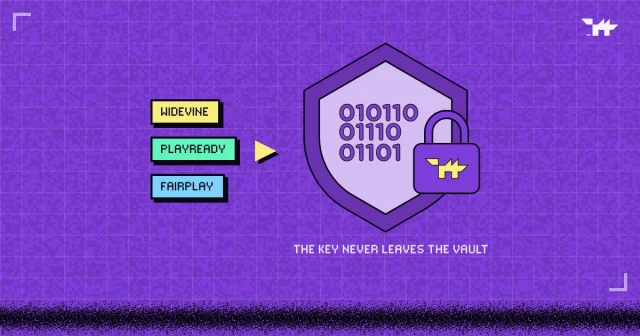
What is video DRM? Widevine, PlayReady and FairPlay, explained
How encryption, licences and the DRM module inside every browser keep a paid video playable only by the people who paid for it, and where DRM stops.